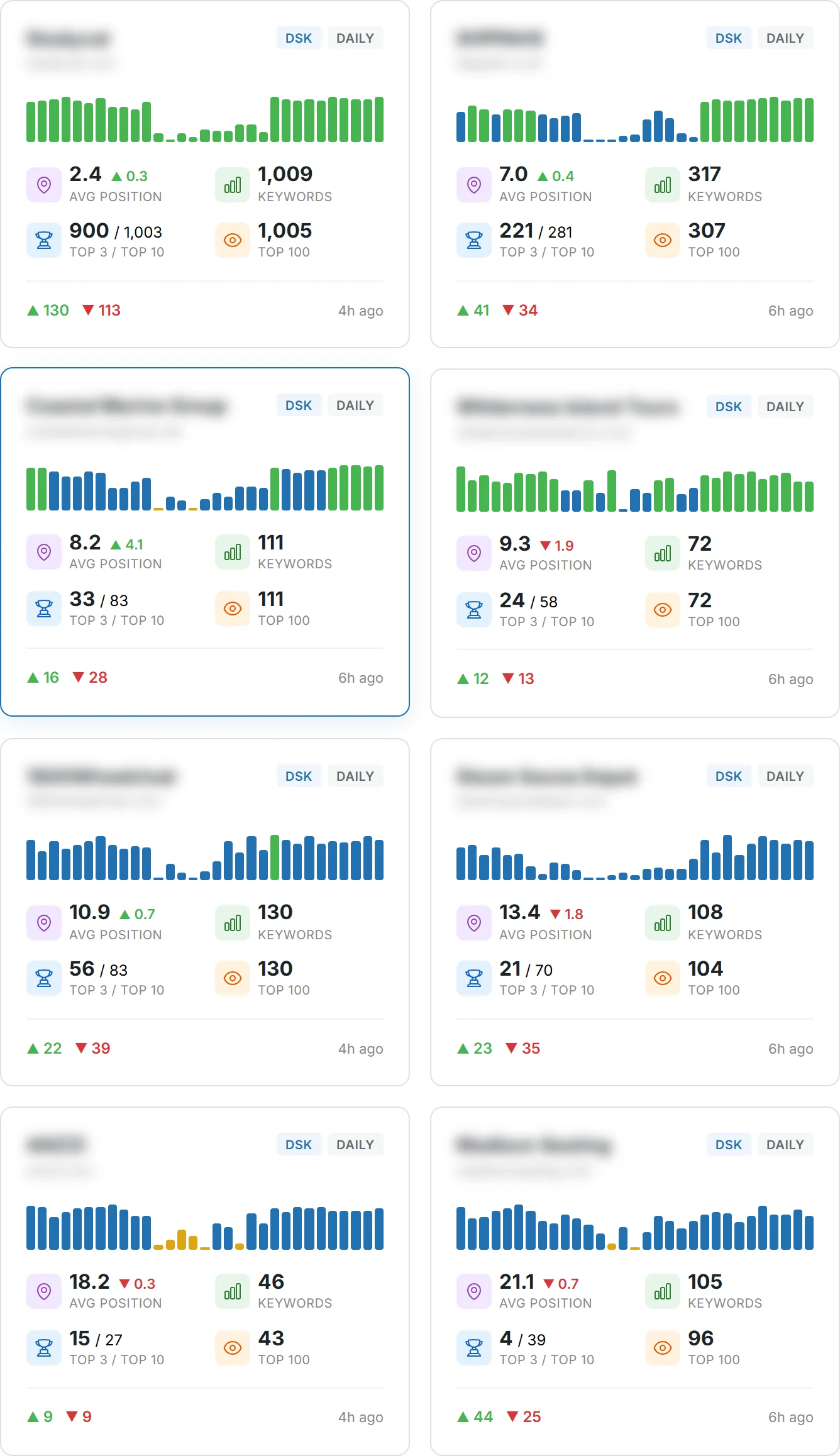
Rank number one for a search sitting three blocks from your shop, then drop to page three for the exact same term two miles down the road. That's not a glitch — that's just how Google Maps actually works, and it's why a single-position rank check tells you almost nothing. A proper google maps rank checker plots dozens of grid points around your business and shows you position at every one of them, which is the only honest way to see where you're winning and where you're invisible.
Most business owners run one search, see themselves in the map pack, and assume they're set. Then a customer three neighborhoods over says they couldn't find them at all. Here's what most people miss: local rankings shift block by block, sometimes pin by pin, and a grid is the only view that catches that. Once you pull up your first grid report, though, you'll probably stare at a wall of colored dots and numbers with zero idea what any of it means.
That's the gap this tutorial closes. Whether you're testing a free rank checker for the first time or you've already got Whitespark Local Rank Tracker or Grid My Business running weekly scans, the tool only matters if you can actually read what it spits out. A green pin at position 2 and a red pin at position 19 aren't just numbers — they're a map of exactly where your Google Business Profile needs work. Get the setup wrong — wrong radius, blank location field, the wrong keyword — and you'll be reading garbage data and making decisions off it.
So let's set one up correctly, step by step, and turn those grid squares into an actual plan.
What You'll Learn and What You Need Before You Start
Picture this: you pull up a scan for a client's plumbing business and see a 5x5 pattern of numbers scattered across a map — a 2 near downtown, a blank in one corner, a 14 out by the county line. That grid is a Google Maps rank checker report, and if you don't know how to read it, you'll misjudge your ranking and waste weeks chasing the wrong fix.
The Grid Map Concept in Plain English
Each point on the grid is a separate simulated searcher standing at that exact location. Google's local ranking shifts block by block, not city by city. A business ranking number one downtown might sit at 20 three miles out — same keyword, same business, wildly different position.
Tools You Can Use: Free Rank Checker vs Paid Local Rank Tracker
A free local rank checker gets you a quick snapshot for one keyword. A paid local business rank tracker adds historical trends, multiple locations — white-label reporting for agencies managing several clients at once.
What You Need Ready Before Running Your First Scan
Before you scan, gather:
Your verified Google Business Profile name, exactly as listed
Two or three target keywords, not ten
A center point — usually your storefront pin
A grid size decision (9, 25, or 49 points)
Step 1: Pick the Right Google Maps Rank Checker for the Job
Not every tool measures the same thing, and picking the wrong one wastes your first hour before you've even read a grid. A Google Maps rank checker pulls simulated searches from specific coordinates and shows where a business lands in the map pack at each point — that's the entire mechanism. Before you touch a grid report, match the tool to your actual need: a quick gut check versus ongoing client tracking.
Free Local Rank Checker Options and Their Limits
A free local rank checker is fine for a one-off spot check. Most cap you at a handful of searches per day, skip historical data, and won't export a report your client can open. Fine for curiosity. Not fine for proving movement over three months.
When Whitespark Local Rank Tracker or Grid My Business Makes More Sense
Once you're tracking multiple clients or keywords weekly, the free tier stops working. That's where paid platforms earn their cost — the buy backlinks cheap route pairs well here, since ranking gains need something pushing them. The whitespark local rank tracker and grid my business both log history, automate rechecks, and hand you a defensible ranking record.
Step 2: Set Your Search Location and Radius Correctly
Ever wonder why two grid runs for the same business show wildly different rankings a day apart? The answer is almost always the pin, not the algorithm.
Why Location Blank or Auto-Detected Location Skews Results
Leaving the location field blank lets most tools guess based on IP address, which rarely matches where your customers actually search from. A Google Maps rank checker needs a manually placed pin at the exact address (or the geographic center of your service area) to produce results you can trust. Auto-detected location is fine for a quick sanity check, but not for anything you'd hand to a client or use to justify a link insertion campaign aimed at boosting a specific map pack listing.
Setting the Right Radius for a County, a Neighborhood, or a Multi-Location Business
Radius depends on how customers actually travel to you. A dense urban neighborhood might need a half-mile grid, while a county-wide service business (think HVAC or roofing) needs points spread 5-10 miles apart. Multi-location businesses should run a separate grid per address — never one radius stretched across all locations. Get the radius wrong, and every ranking number below it is noise.
Step 3: Choose the Keyword You're Actually Ranking For
Here's a number that surprises most business owners: roughly 46% of all Google searches carry local intent, yet most people plug their business name into a Google Maps rank checker and call it a day. That's the wrong test. A grid built around your brand name will always look flawless because nobody competes with you for your own name.
Branded vs Non-Branded Search Terms
Branded terms ("Smith Plumbing") tell you nothing about visibility. Non-branded terms ("emergency plumber near me") tell you everything about ranking. Run both, but weight your decisions on the non-branded grid — that's where the real competition, and the real customers, actually live.
Matching Keywords to Real Customer Search Behavior
Pull actual queries from Google Business Profile insights or Search Console before picking a keyword. Guessing wastes credits and produces a grid that flatters you instead of informing you. If your rankings still lag after fixing keyword targeting, the fix often isn't more content — it's authority. Pointing profile backlinks at your Google Business Profile is one of the few moves that reliably nudges map-pack position once the keyword itself is dialed in correctly.
Step 4: Run the Scan and Generate Your First Grid
Most people assume a bigger grid means better data. It doesn't — a 5x5 grid centered correctly beats a sloppy 7x7 every time. Hit the scan button and let the Google Maps rank checker pull live positions for each pin around your business location. Every point queries Google independently, the same way Whitespark Local Rank Tracker and similar tools do, so don't expect identical numbers to a manual search from your own phone.
What a Normal Grid Generator Run Looks Like Live
Watch the pins populate one at a time. Green usually means top 3, yellow is the murky middle, red means you're buried past page one. Rankings shift depending on distance from your pin, and that's the entire point of a local rank checker — it exposes where you're invisible, not just where you already win. If half your grid stays blank, don't panic yet.
Expected Runtime and What Counts as a Failed Scan
A standard grid takes 30 to 90 seconds. Anything longer than three minutes with zero pins filled is a failed scan — rerun it. While you wait, it's worth strengthening the assets behind your rankings, including web 2.0 sites pointed at your existing links rather than your homepage directly.
Step 5: Read the Grid — Understanding the Color Codes and Numbers
Picture a bakery owner pulling up her grid after a fresh scan. Twelve pins are green, six are yellow, and the far corner of the county is solid red. That's a normal pattern for most local businesses — strong near the storefront, weaker as the grid stretches toward the edges of town.
Green, Yellow, and Red Zones Explained
Green pins mean the business sits in the top 3 of the map pack at that exact location. Yellow usually covers positions 4 through 10 — visible, but not dominant. Red marks anything past position 10, sometimes shown as 20+ when a Google Maps rank checker stops counting. Don't panic over a single red pin near a highway or industrial zone; look at the pattern across the whole grid instead.
What a Number Like 1, 8, or 20+ Actually Means at Each Pin
A "1" means first place in the local pack from that pin's location. An "8" means the business is buried below the pack, on page one at best. A "20+" often signals the business isn't ranking in any meaningful local results there at all. Building contextual backlinks pointed at the Google Business Profile page tends to move those yellow and red pins toward green over a few tracking cycles.
Step 6: Compare Your Grid Against a Live Satellite or Street View
Numbers alone lie to you sometimes. A grid point can show a weak position, but until you look at the actual ground it sits on, you don't know why.
Overlaying Grid Data on Earth View and Street View
Pull up your google maps rank checker grid alongside a satellite or earth view of the same coverage area. Most local rank tracker tools let you export the grid as coordinates, which you can then drop into Google's own map layer or a Street View pass. Look for the obvious stuff first — a river, a highway split, a county line cutting through your service radius. These physical features explain ranking drops that a spreadsheet never will.
Spotting Ranking Gaps by Physical Location, Not Just Numbers
Here's what most people miss: a low score three miles out isn't always a ranking problem — it's sometimes a geography problem. Check for:
Natural barriers — mountains, water, or industrial zones separating grid points from your storefront
Population density — rural points near a town border often underperform for reasons unrelated to SEO
Competitor clustering — a nearby business hub pulling local pack visibility away from that specific point
Match the weak points on your grid to what's physically there. That's where the real fix starts.
Step 7: Track Ranking Changes Over Time With a Live Tracker
How often should a grid actually get pulled? That's the question that trips up most people running a Google Maps rank checker for the first time. One scan tells you where you stand today. It says nothing about whether you're climbing, sliding, or just bouncing around from normal search volatility.
Setting Up Weekly or Daily Scans Without Wasting Credits
Daily scans make sense during an active campaign — new citations going live, a fresh batch of reviews, a GBP category change. Outside of that, weekly is plenty for most local businesses. Here's a rough guide:
Active optimization phase: daily or every other day
Maintenance mode: once a week
Multi-location tracker: stagger scans by location to spread out credit use
Running daily scans on a stable listing just burns credits for flat data.
Reading Trend Lines: Steady Climb vs Random Noise
A steady climb looks like small, consistent gains across most grid points over 3-4 weeks. Random noise looks like a point jumping from #4 to #11 and back to #6 with no pattern. Ignore single-day spikes. Trust the line only after two or three consistent scans point the same direction.
Step 8: Troubleshoot Common Grid Reading Mistakes
About 40% of first-time grid users misread a blank cell as "not ranking" when it actually means the pin fell outside the top 20 or 100, depending on tool settings. That distinction changes your whole strategy — so check your settings before you panic.
If Your Business Isn't Appearing Anywhere on the Grid
First, confirm your Google Business Profile is verified and live, not suspended. Next, check that your grid radius isn't too wide for a small service area — a 20-mile grid built for a single-location shop will show mostly empty cells no matter how good your local SEO is. Narrow it and rescan.
If Results Look Inconsistent Between Two Scans Minutes Apart
Google's local algorithm isn't static. Personalization, device type, and even server load cause minor shifts. Run three scans across a day and average them instead of trusting one snapshot as your ranking truth.
If an Outage or Google Update Is Skewing Your Data
Check a status page or SEO forum before assuming your rankings tanked. Broad core updates — outages create temporary chaos on any Google Maps rank checker grid — wait 48 hours, then rescan for a clean read.
How Grid Results Differ by Region: Florida, California, Michigan, Indiana, Utah, Washington, Alabama, and Iowa Examples
Here's a myth worth killing: a 5-mile grid means the same thing everywhere. It doesn't. Run a Google Maps rank checker in dense Miami, Florida, then run the same radius in rural Iowa, and you'll get two completely different pictures of local visibility — even with identical settings.
Dense Urban Grids vs Rural County Grids
In tight urban markets like San Diego, California or parts of Washington state, a 1-mile grid might cover 40 competing businesses per category. That's a brutal ranking environment. Drop that same grid into a rural Indiana or Utah county and you might be the only relevant result within 10 miles — rankings look artificially strong, not because the business is dominant, just because the competition is thin.
Why the Same Radius Behaves Differently From City to City
Population density, road layout, and how Google draws service-area boundaries all shift what a grid actually measures. Alabama and Michigan markets with sprawling suburbs need wider point spacing than a compact Florida metro. Realistically, there's no universal county-level default. Adjust radius and point count to match local density before trusting the tracker's ranking output.
Turning Grid Data Into an Action Plan for Higher Map Pack Rankings
Say your google maps rank checker grid comes back with a 3 in the center, sliding to a 9 near the county line, and a blank dot two towns over. That pattern tells a story — your Google Business Profile has authority near the pin but zero pull at the edges. The grid isn't decoration. It's a punch list.
Prioritizing Which Grid Squares to Fix First
Don't chase the blank squares first. Start with the ones sitting just outside the map pack — positions 4 through 8 — since those move fastest with the least effort. A square stuck at position 20 usually needs new citations or a service-area update, not a quick tweak.
What to Change on Your Google Business Profile Based on What You See
Once you've ranked the squares, match fixes to the pattern:
Weak in one direction only: add that neighborhood's name naturally into your services and posts.
Weak everywhere except center: build local citations and check your primary category against competitors.
Strong but inconsistent: review count and photo activity are likely the gap, not location.
Re-run the tracker every two weeks. Real movement, not guesswork, tells you what's actually working.
Recap: What You've Built and Where to Go From Here
You now know how to read a grid instead of just staring at it. That's the real skill here — not running a Google Maps rank checker, but knowing what the dots actually mean for your ranking and your next move.
Quick Checklist of Every Step You Just Completed
Picked a local rank checker and set your business location as the center point
Ran a live scan across the grid and let each point pull its own ranking data
Read color coding — green for top 3, yellow for mid-pack, red for buried past position 10
Spotted directional weak points instead of one flat average position
Compared results against a free rank checker or GBP rank checker to confirm accuracy
Logged the scan date so you can track movement over time, not just a single snapshot
Next Tutorials to Try: Competitor Tracking, White Label Reporting, and Multi-Location Grids
Next, layer in competitor tracking — see who's sitting in those green squares you want. After that, build a white-label report if you're managing this for clients. And if you run multiple locations, grab a multi-location grid workflow, so you're not repeating this process county by county. Same core skill, just scaled up.
Recap & Next Steps
You picked a scanner, set a real location instead of a blank auto-detected one, chose a keyword that matches actual search behavior, ran the grid, and read the colors and numbers pin by pin. Then you cross-checked that grid against street-level reality and set up a live tracker so you're watching a trend line instead of a single lucky snapshot.
That's the whole loop. Scan, read, verify, track, fix, rescan.
Set a recurring weekly scan on your top 3-5 keywords instead of checking manually — random noise is easier to spot when you have five data points, not one.
Build a second grid for your closest competitor. Pin their listing at the center and run the same radius. It'll show you exactly which squares they own that you don't.
Export a white-label report if you're managing this for a client or multiple locations — raw grid screenshots don't explain themselves; a formatted report does.
Widen the radius once you've fixed your inner ring. Most businesses obsess over the 1-mile core and ignore the 5-8 mile ring where a lot of real customers actually search from.
If you manage more than one location, the multi-location grid tutorial is the logical next stop — it covers how to keep 10+ grids organized without drowning in tabs.
A grid full of green pins doesn't happen by luck — it happens because someone actually read the numbers instead of glancing at them. That's the whole point of this walkthrough. A Google Maps rank checker only earns its keep when you know why pin 14 is red while pin 3 sits at position one just four blocks away, and what that gap is telling you about your service radius or your listing categories.
Run the scan weekly, not daily. Watch the trend line, not any single snapshot. One bad grid could be an algorithm hiccup; three bad grids in a row is a pattern worth fixing. And don't chase every red square at once — start with the pins closest to where your actual customers search from, then work outward.
So here's the next move: pull up last week's grid, sit it next to today's, and find the one square that moved the most in either direction. Figure out why. That single habit, repeated month after month, is what separates business owners who guess about map pack rankings from ones who actually control them.